
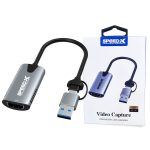

🔹 Key Features (Expected)
- HDMI Video Capture
- Records or streams 1080p/720p HDMI video (exact max resolution depends on the model).
- May support 30/60fps (check specifications).
- Dual USB Connectivity
- Works with USB-A (standard USB) and USB-C ports (flexible for laptops/PCs).
- Plug-and-Play
- Likely UVC/UAC compliant (no drivers needed for most OS like Windows, macOS, Linux).
- HDMI Loop-Through (Possible Feature)
- Some models allow HDMI passthrough to a monitor while capturing.
- Audio Capture
- Supports embedded HDMI audio or 3.5mm AUX input (if available).
🔹 Common Uses
✔ Game Capture – Record gameplay from consoles (PS5, Xbox, Switch).
✔ Live Streaming – Broadcast via OBS, Zoom, or other software.
✔ Video Conversion – Digitize HDMI sources (cameras, DVD players).
✔ Presentations/Meetings – Capture HDMI feeds for webinars.
🔹 Compatibility
- Input: HDMI sources (consoles, cameras, set-top boxes).
- Output: USB to PC (Windows/macOS/Android/Linux).
- Not for HDCP-protected content (e.g., Netflix, Blu-ray due to encryption).
🔹 Setup Guide
- Connect HDMI source (e.g., camera, console) to the capture device.
- Plug USB into PC (USB-A or USB-C, depending on your computer).
- Open recording software (OBS, VLC, QuickTime, etc.).
- Select the capture device as the video source.
🔹 Troubleshooting Tips
⚠ No Signal Detected?
- Ensure the HDMI source is powered on.
- Try a different USB port (USB 3.0 recommended).
- Check if HDCP is blocking the signal (common with DRM content).
⚠ Choppy Video/Audio Sync Issues?
- Lower resolution/frame rate in software settings.
- Use a powered USB hub if the device isn’t getting enough power.
⚠ Not Recognized by PC?
- Test on another computer to rule out driver issues.
- For Windows, check Device Manager for unrecognized devices.




Reviews
There are no reviews yet.